 ADSCivil
| BAEZENI SOFT CO., LTD Contact 0345.868.227 / 0977.973.227 Address: 2nd Floor, CT1AB Building - Me Tri Plaza, Nam Tu Liem, Hanoi. Website: adscivil.vn |
 CONTACT US DIRECTLY FOR THE FASTEST SUPPORT |
DOWNLOAD - DETAILED INSTALLATION GUIDE FOR ADSCIVIL 2025:
1. Runs on a range of platforms
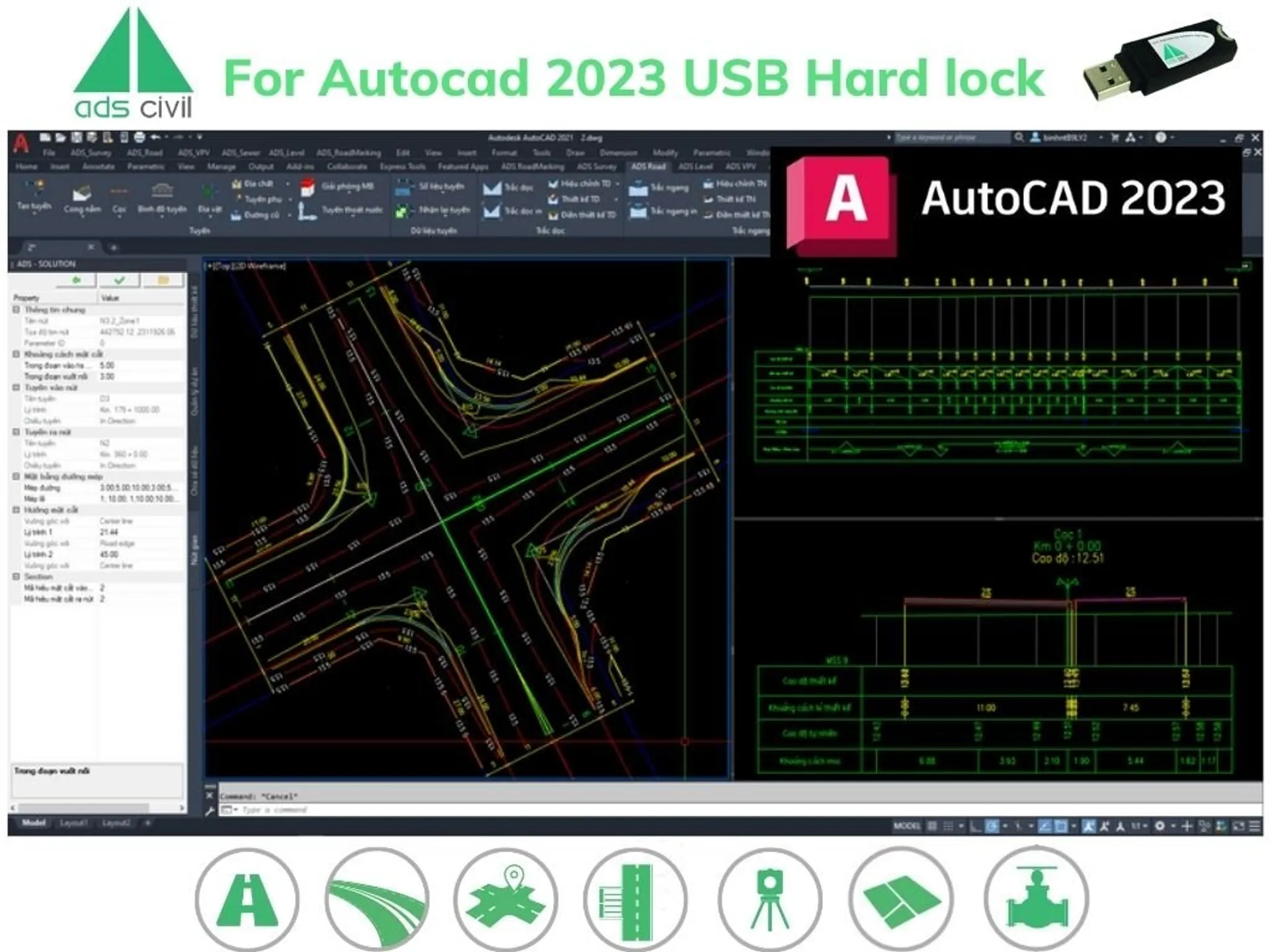
ADSCivil runs on a number of widely used platforms including Civil 3D, AutoCAD and ZWCAD, from AutoCAD 2022 upwards. That leaves users free to pick the tools they already know and fit the software into them. Broad compatibility also makes it straightforward for ADSCivil to connect and share data with other software, which helps teams work together.

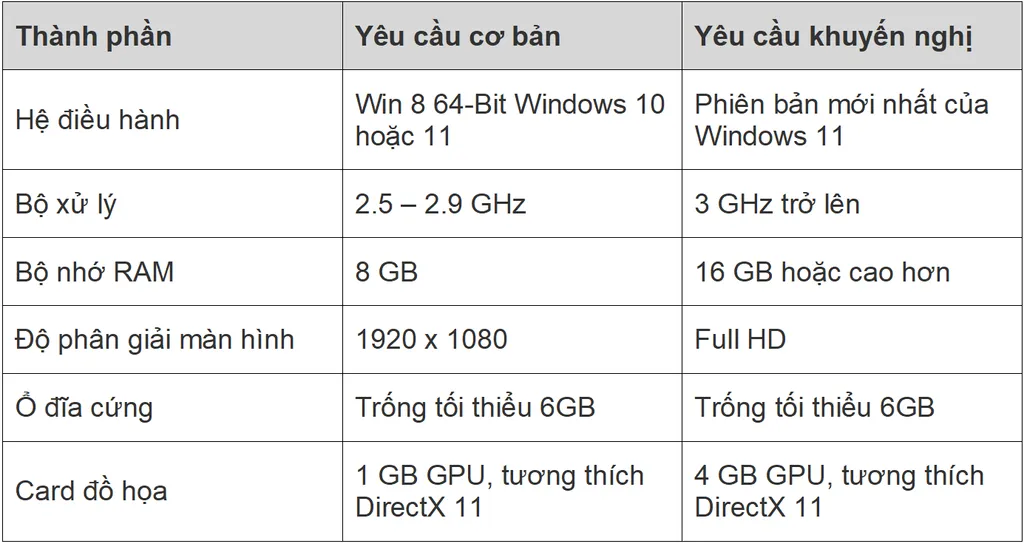
2. Minimum specification
your computer needs to meet the detailed requirements below for the best performance and a smooth experience.
STEP 1: DOWNLOAD ADSCIVIL
- Download the network key edition of ADSCivil 2025 matching the AutoCAD version you use, from the website: https://adscivil.vn/download
or download it HERE
Note: ADSCivil 2025 runs on AutoCAD 2022 and later
STEP 2: RUN ADSCIVIL2025.EXE TO START THE INSTALLATION
- Install the software
-
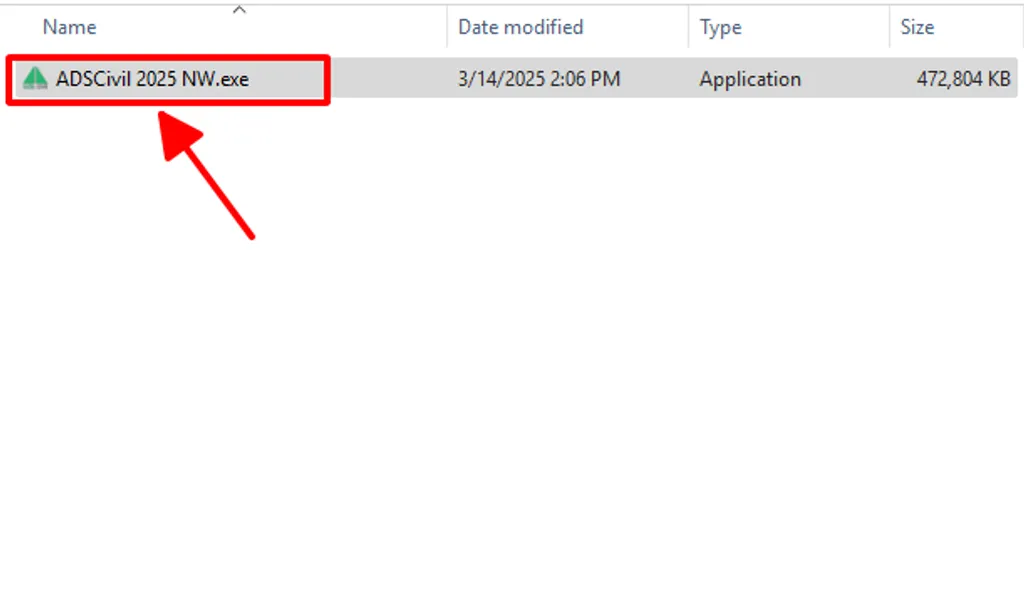
- Once the download has finished, double-click to run the installer ADSCivil.exe
2. Click NEXT, choose the drive where ADSCivil will be installed, then click NEXT again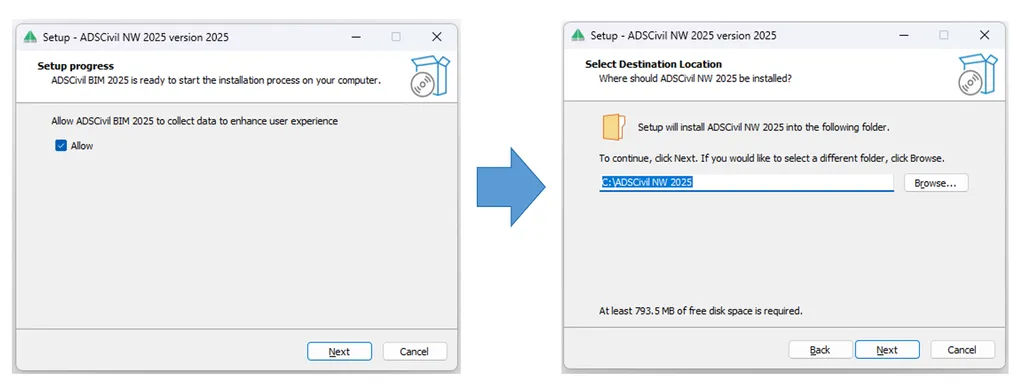
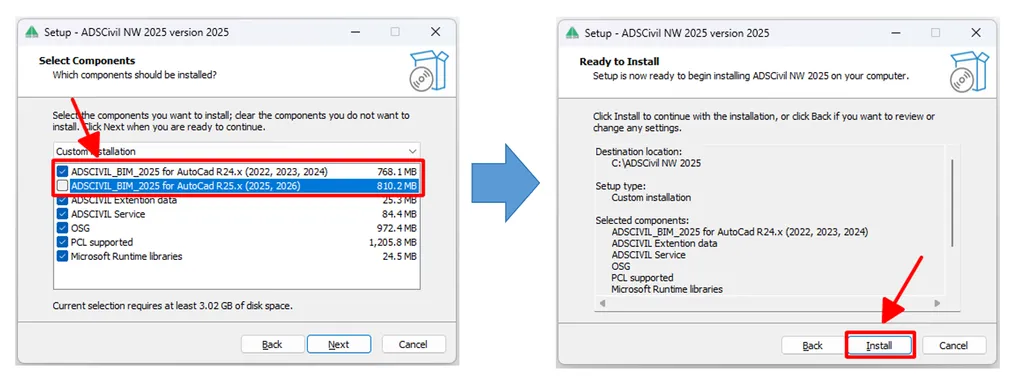
3. Next, tick the default settings ( Note: on lines 1 and 2, tick ONE of the two, matching the AutoCAD platform you use - do not tick both ) -> click NEXT -> click INSTALL to begin
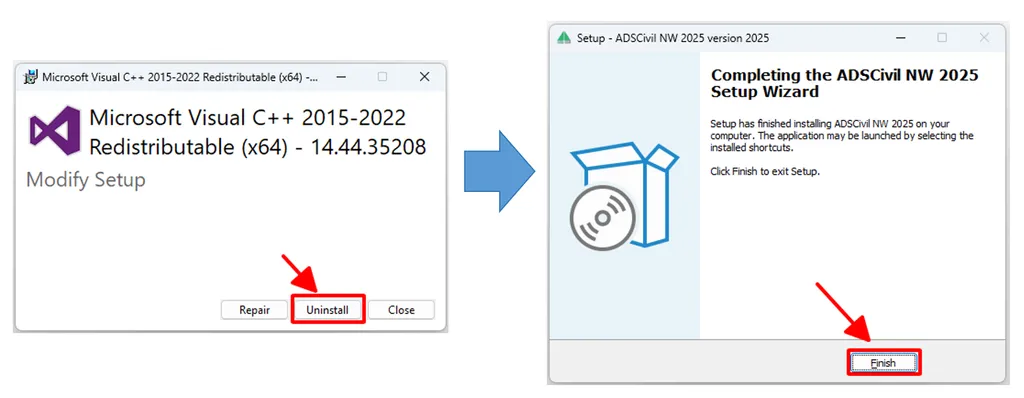
4. Microsoft Visual C++ is installed next; when the C++ dialog appears choose CLOSE, or UNINSTALL if the machine already has C++ -> then click FINISH to complete the installation
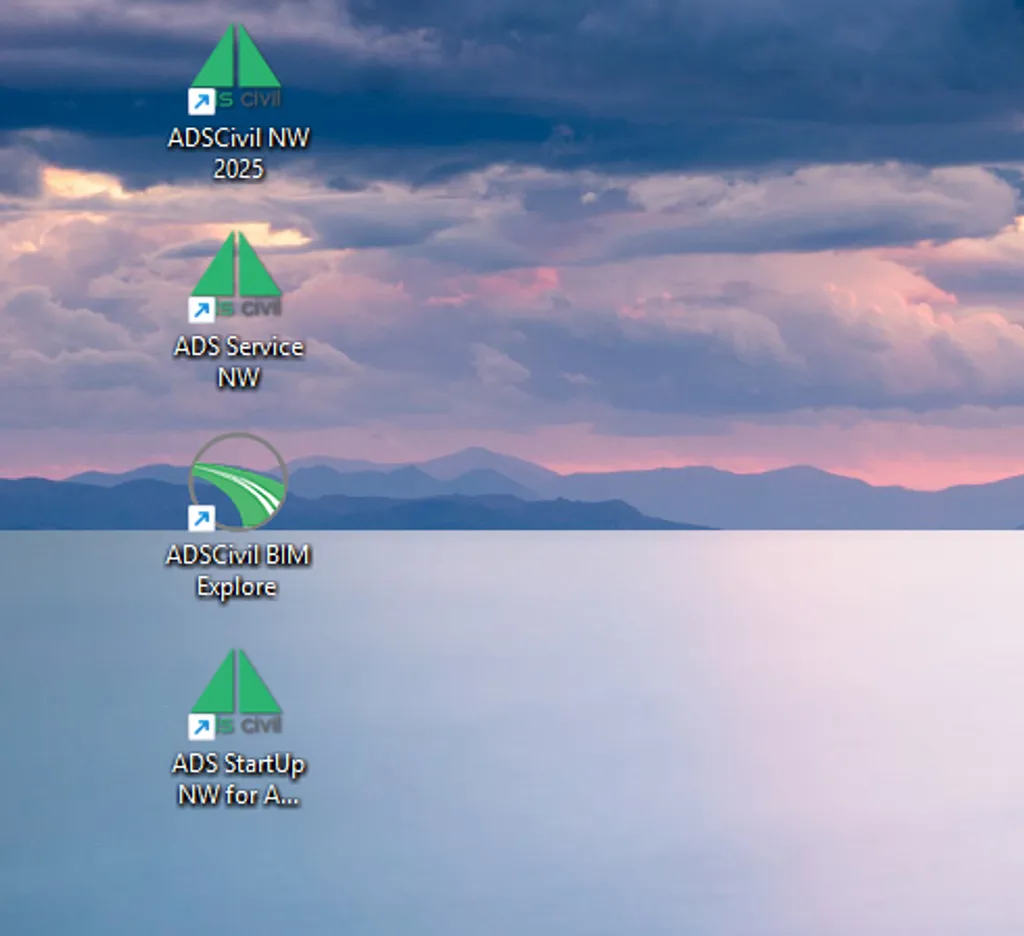
5. Once installation is complete, four icons will appear on the desktop:
|
 |
STEP 3: SIGN IN AND START USING THE SOFTWARE
- Choose ADS Service NW to sign in -> at the bottom right of the screen click the arrow to show the application icons -> right-click the ADSCivil icon -> Signed in to sign in to the software
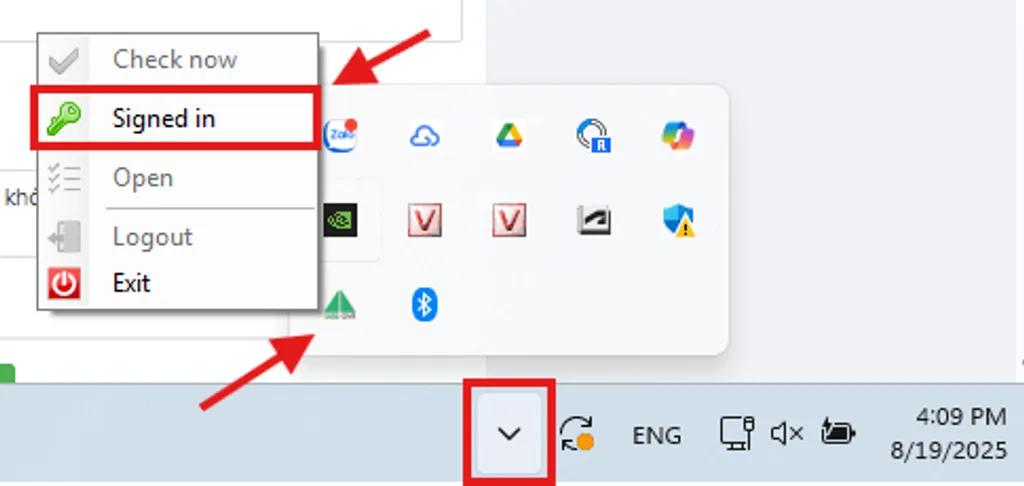
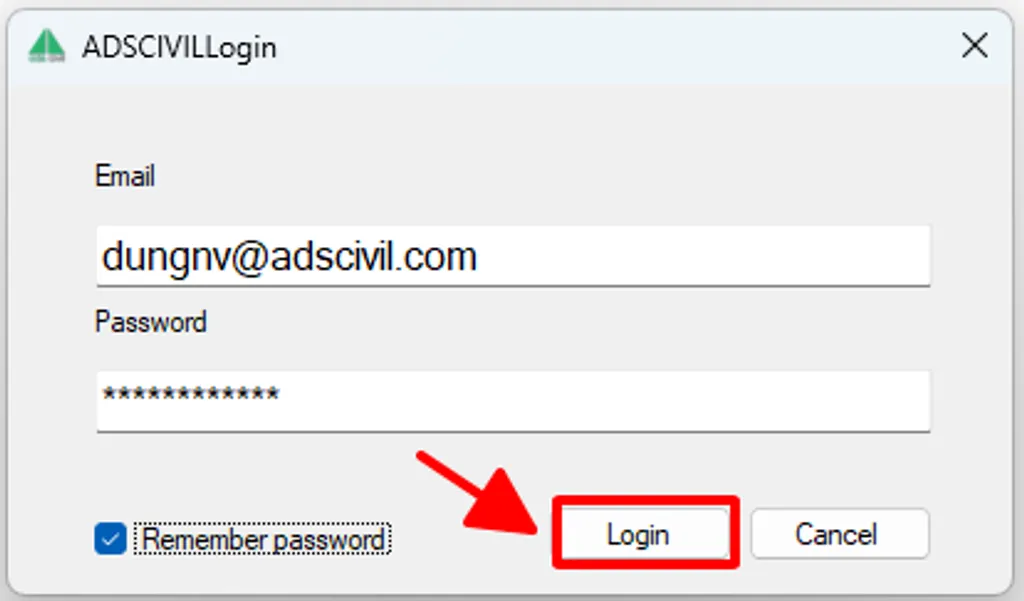
- Enter your account and password in the sign-in menu
NOTE: if you do not have an account yet, please register at REGISTER AN ACCOUNT to be issued one free of charge
STEP 4: OPEN THE SOFTWARE AND GET TO WORK
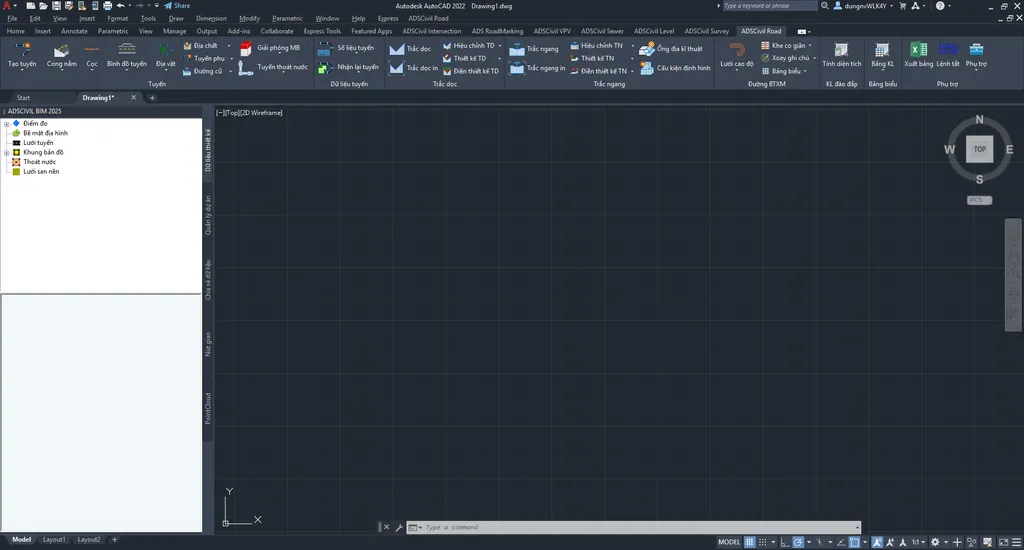
- Once signed in, click the ADSCivil 2025 icon to open the software
REGISTER FOR A TRIAL: |
 |
Contact:
Call our hotline for answers to any questions: 0345.868.227 or 024.3200.5386
Website: adscivil.com
Mail: [email protected]
Address: 2nd Floor, CT1AB Building - Me Tri Plaza, Nam Tu Liem, Hanoi.
Zalo Office: